Illustrator basics: precision tools

Fredy Polania
Product Strategy • Visual Communication • Web Development

Visual Engineering with Adobe Illustrator
Adobe Illustrator is the industry standard for vector graphics creation. In this tutorial, we address the most basic aspects of the program from a professional production perspective, focusing on the work environment and the tools that allow you to take the first steps with technical mastery.
Illustrator, developed by Adobe, is a vector graphics editor used for digital art illustration and graphic design, among other purposes.
It is common to receive requests for promoting events, activities, and invitations. The preparation of these graphic pieces falls on us, and although some “easy-to-use” programs exist, the results are simply not comparable to those achieved with Illustrator.
Video Contents
Tools
Panels
-
Swatches Panel 8:23
-
Stroke Panel 10:00
-
Layers Panel 11:43
-
Character Panel 14:35
-
Paragraph Panel 16:38
-
Combined Tool Usage 19:46
-
Summary and Conclusion 24:02
1. Interface and Workspace
To operate with efficiency, it is essential to configure the environment: Windows -> Workspace -> Essentials Classic. The order in the panel is a reflection of the order in the design strategy.
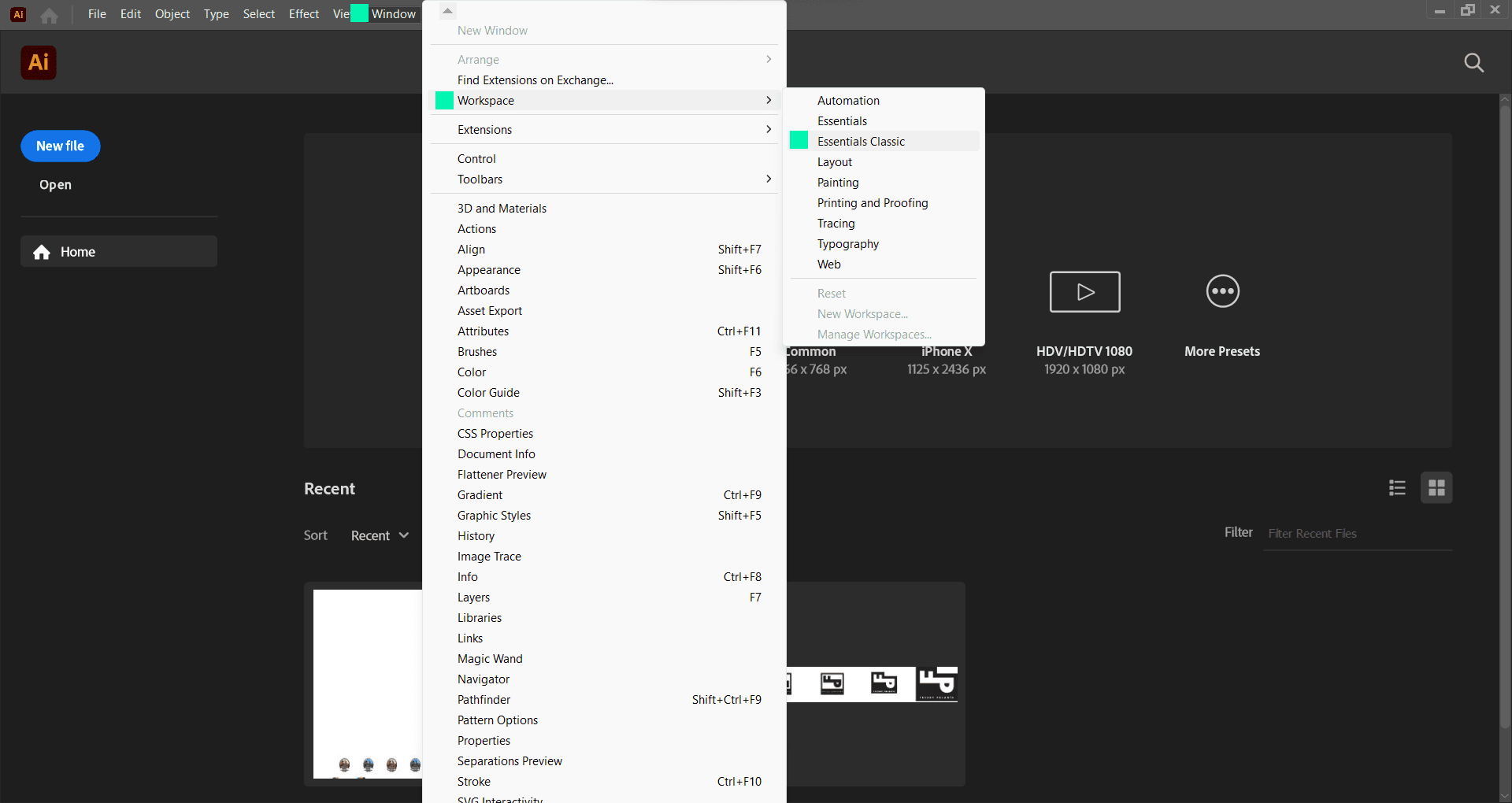 Illustrator CC 2023 Workspace Configuration
2. Create a New Document
We can create a new document via the menu File -> New, by clicking the blue “New File” button on the interface, or by pressing Ctrl + N (Cmd + N on macOS):
 New Document Assistant in Illustrator CC 2023
3. Basic Tools
All the tools in this section can be selected using a specific keyboard shortcut, which saves time by avoiding the need to click them manually with the mouse pointer.
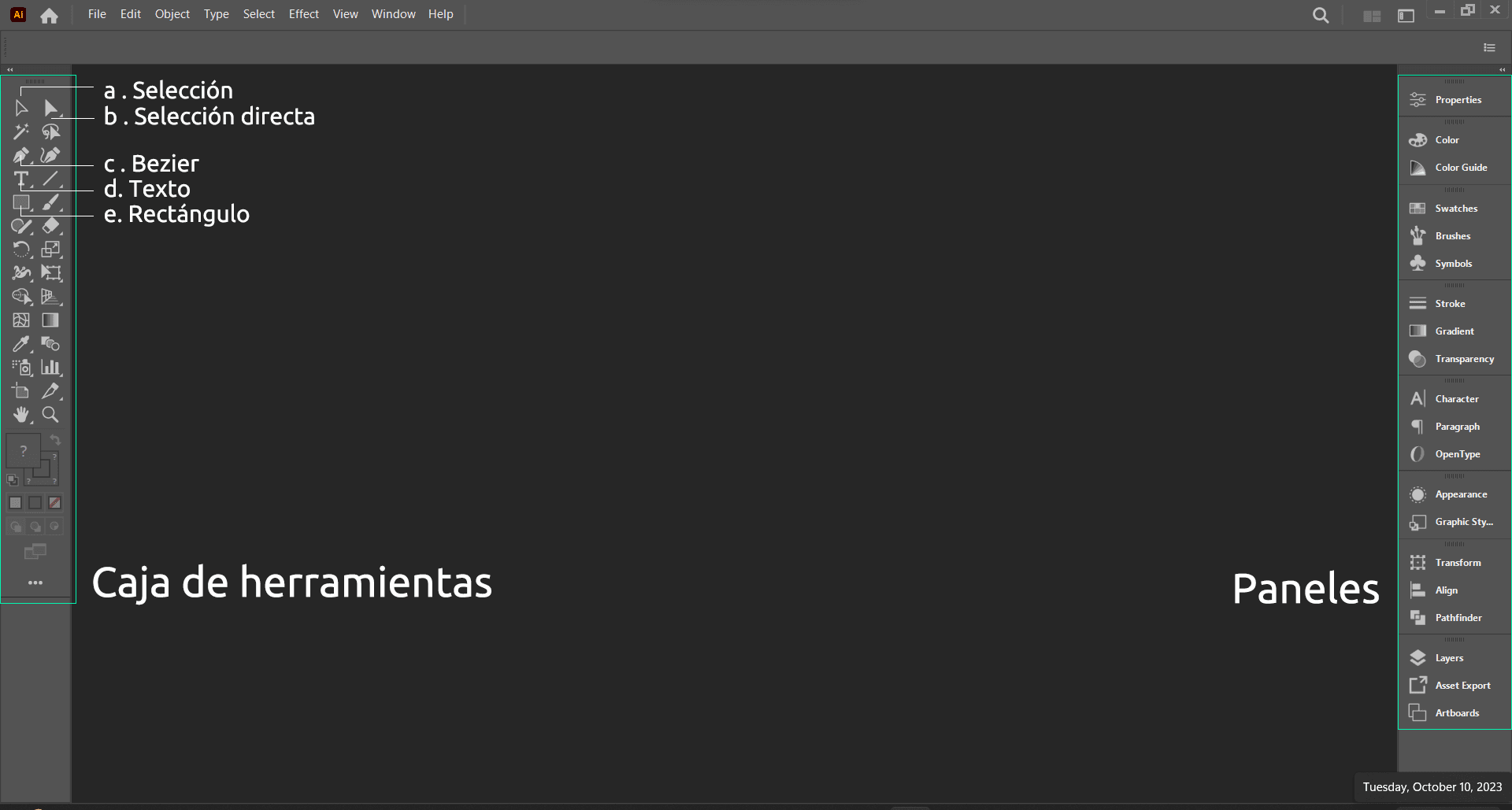 Illustrator CC 2023 User Interface
Selection Tool
This is the main selection tool and is used to select or move any element in the workspace. Shortcut: V.
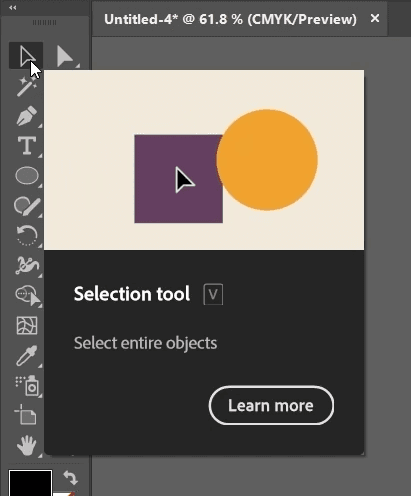 Main Selection Tool in Illustrator CC 2023
Direct Selection Tool
With this tool, you can select a specific part of a shape, one of its anchor points, or a specific object within a group. Shortcut: A.
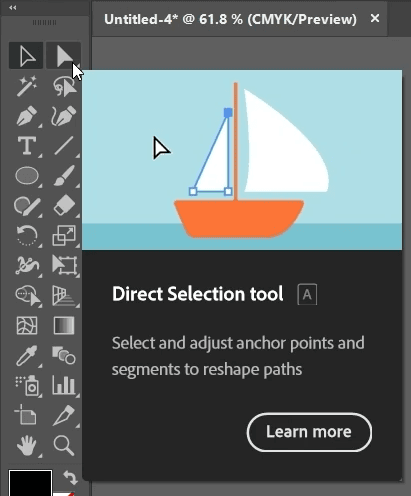 Direct Selection Tool in Illustrator CC 2023
Bézier (Pen Tool)
The Bézier pen tool allows us to create vector paths and shapes exactly as we want. Shortcut: P.
 Bézier Pen Tool in Illustrator CC 2023
Type Tool
The Type tool allows us to create text boxes to input textual information. Shortcut: T.
 Type Tool in Illustrator CC 2023
Rectangle Tool
This tool allows us to quickly create basic geometric shapes. Shortcut: M.
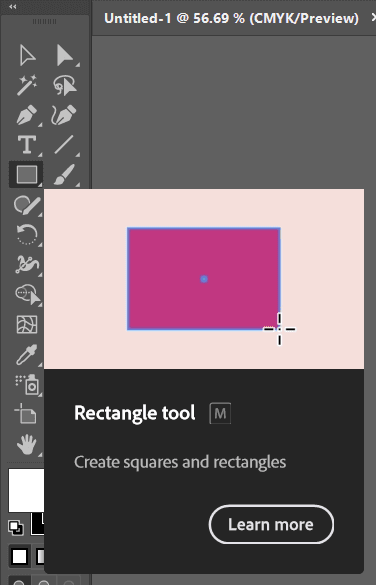 Rectangle Tool in Illustrator CC 2023
Zoom Tool (Magnifying Glass)
The Zoom tool allows us to zoom in or out of the workspace viewing area. Shortcut: Z.
 Zoom Tool in Illustrator CC 2023
4. Basic Panels
Swatches Panel
Here we can select from a series of predefined colors for the shapes we create.
 Swatches Panel in Illustrator CC 2023
Stroke Panel
Allows us to modify the appearance of paths, such as weight, caps, corner types, and dashes.
 Stroke Panel in Illustrator CC 2023
Layers Panel
In this panel, we manage the stacking order of layers to better organize the elements in our workspace.
 Layers Panel in Illustrator CC 2023
Character Panel
Where we configure text settings, such as font family, style, size, leading, tracking, and kerning.
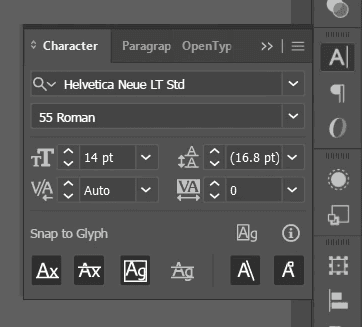 Character Panel in Illustrator CC 2023
Paragraph Panel
Here we change paragraph layouts, including alignment, indentation, spacing before and after, and hyphenation.
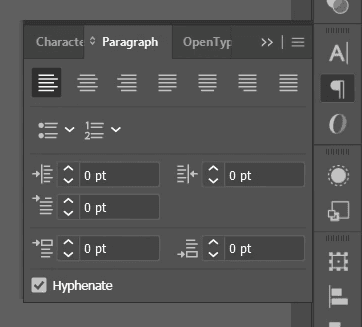 Paragraph Panel in Illustrator CC 2023
Conclusion: The First Step to Mastery
Mastering these tools is the first step to stop using “easy-to-use” programs and start producing professional results with technical precision and visual authority.